
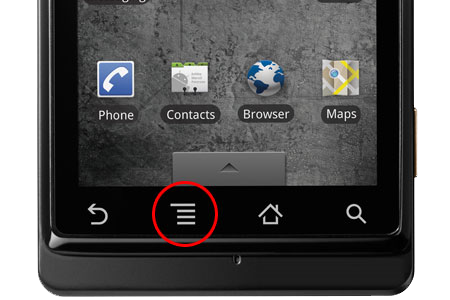
1. Before opening the QwickPAY application, go to your device's home screen and tap the Menu button.
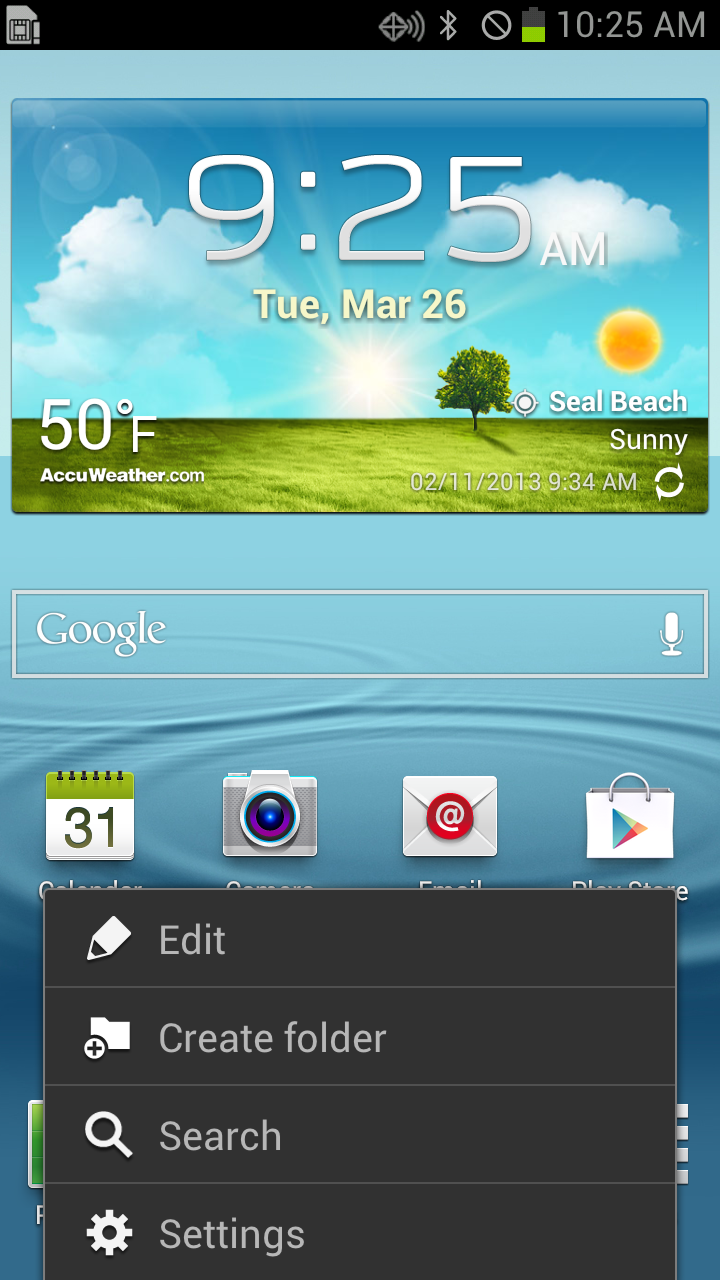
2. Select "Settings."
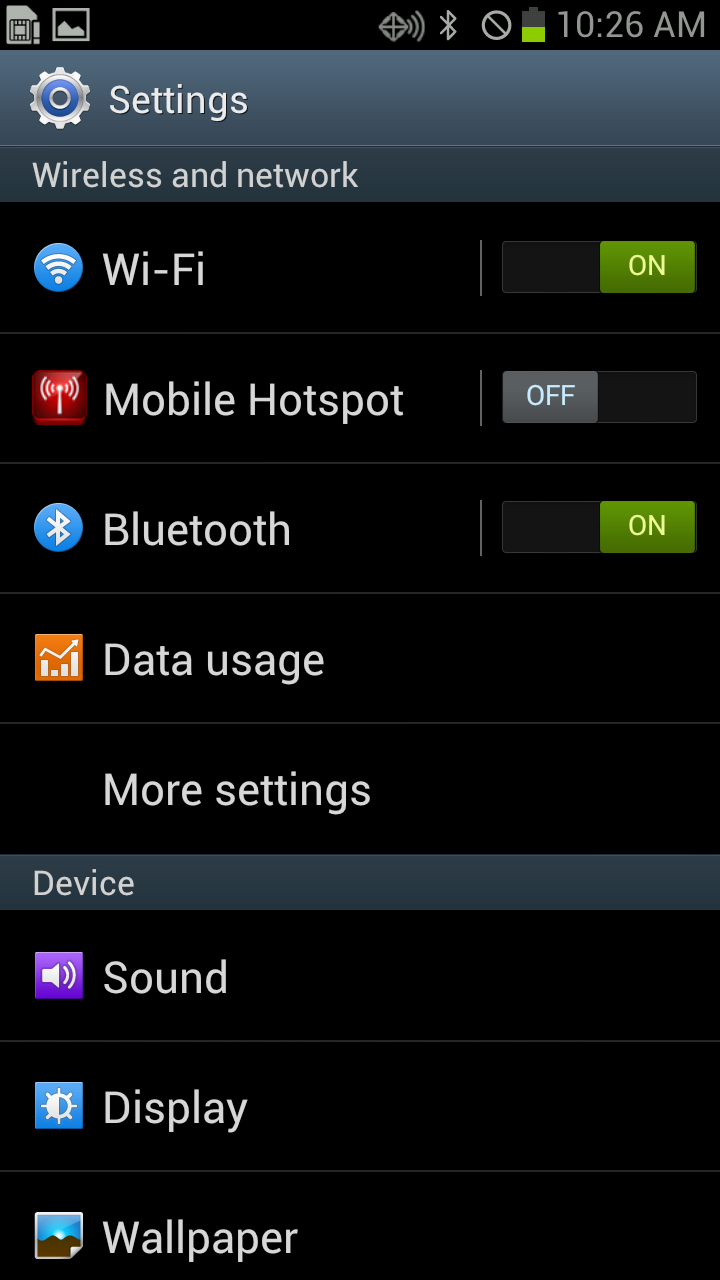
3. Select "Bluetooth" under Wireless and network settings. Turn Bluetooth ON.
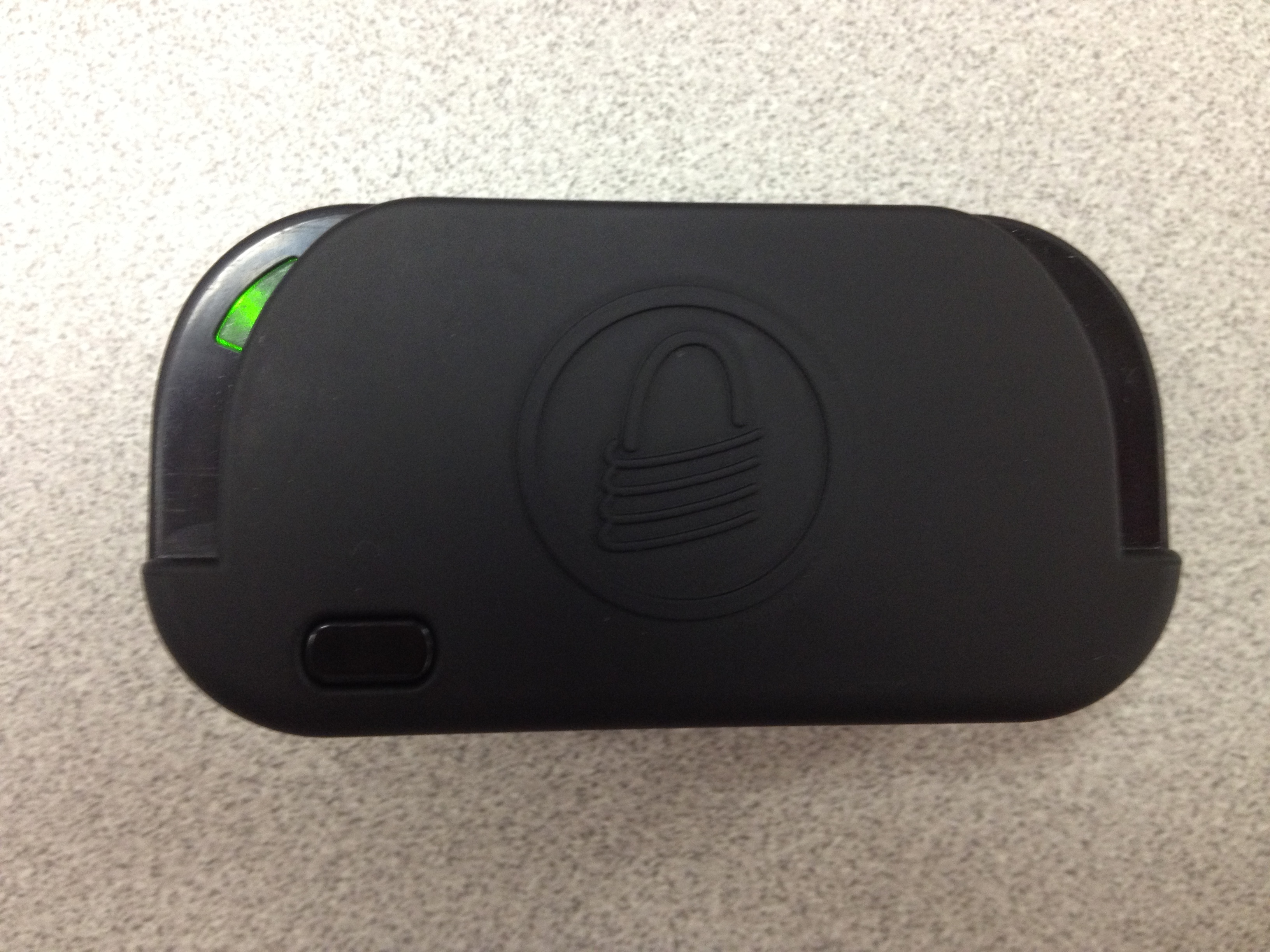
4. Turn on the BulleT SCRA. A green LED light will flash when the device is trying to connect.
5. On the Android device, select "Scan".
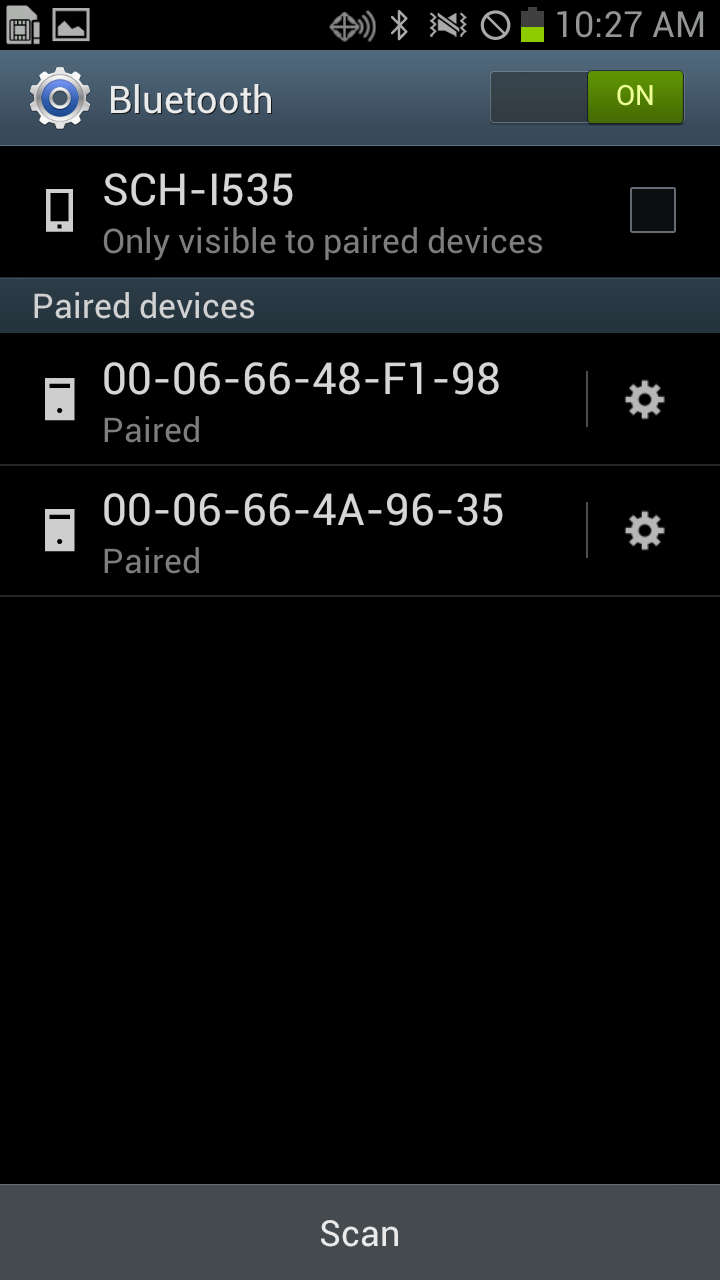
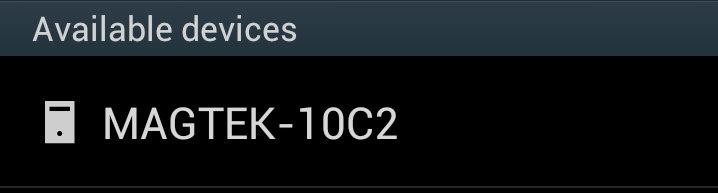
6. Select the MagTek device ("MAGTEK-XXXX) that appears on your screen.
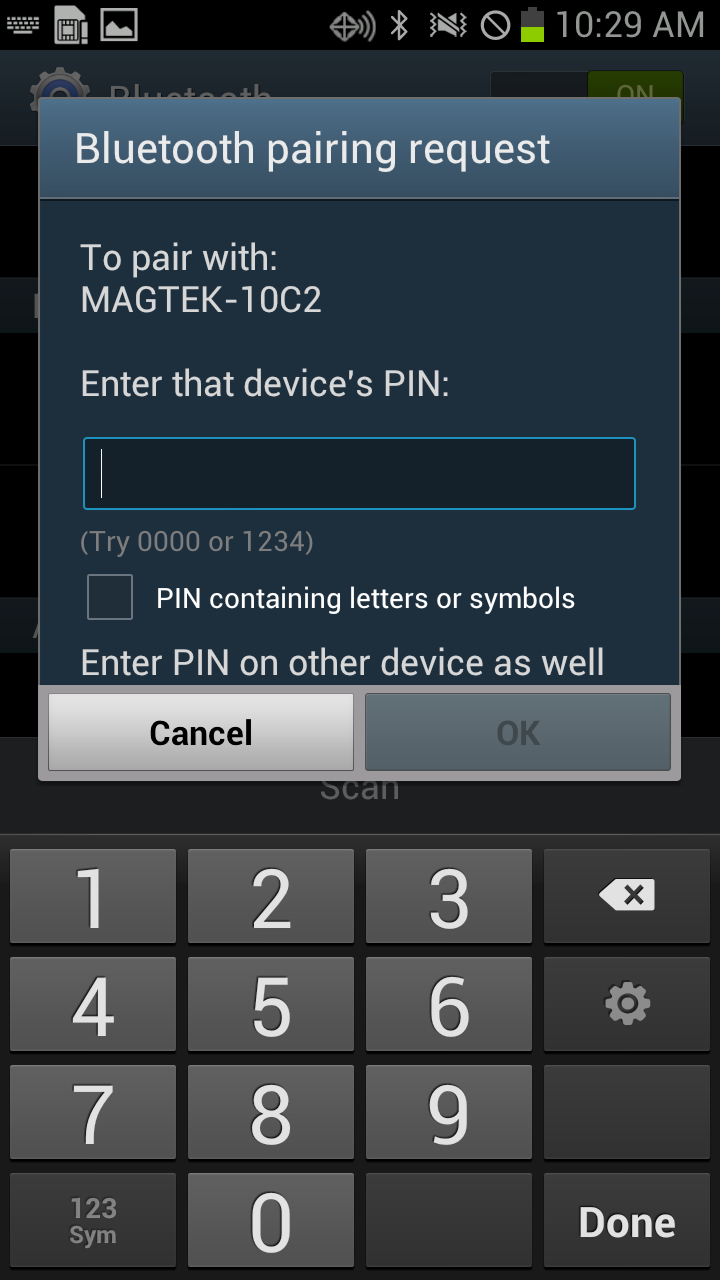
7. The screen will prompt you to enter a PIN. The default is 1234.
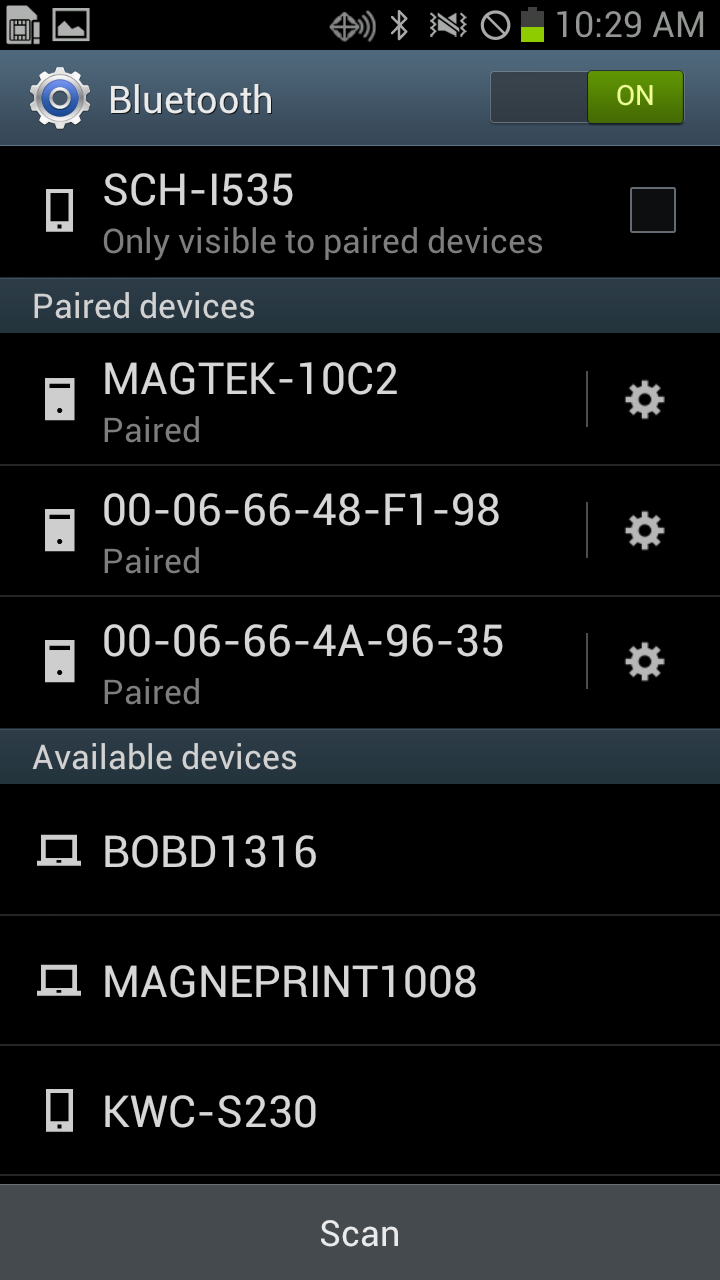
8. The device is now paired, but not connected to QwickPAY. To connect to QwickPAY, launch the QwickPAY app. Continue following the instructions below to pair the BulleT SCRA to your Android.
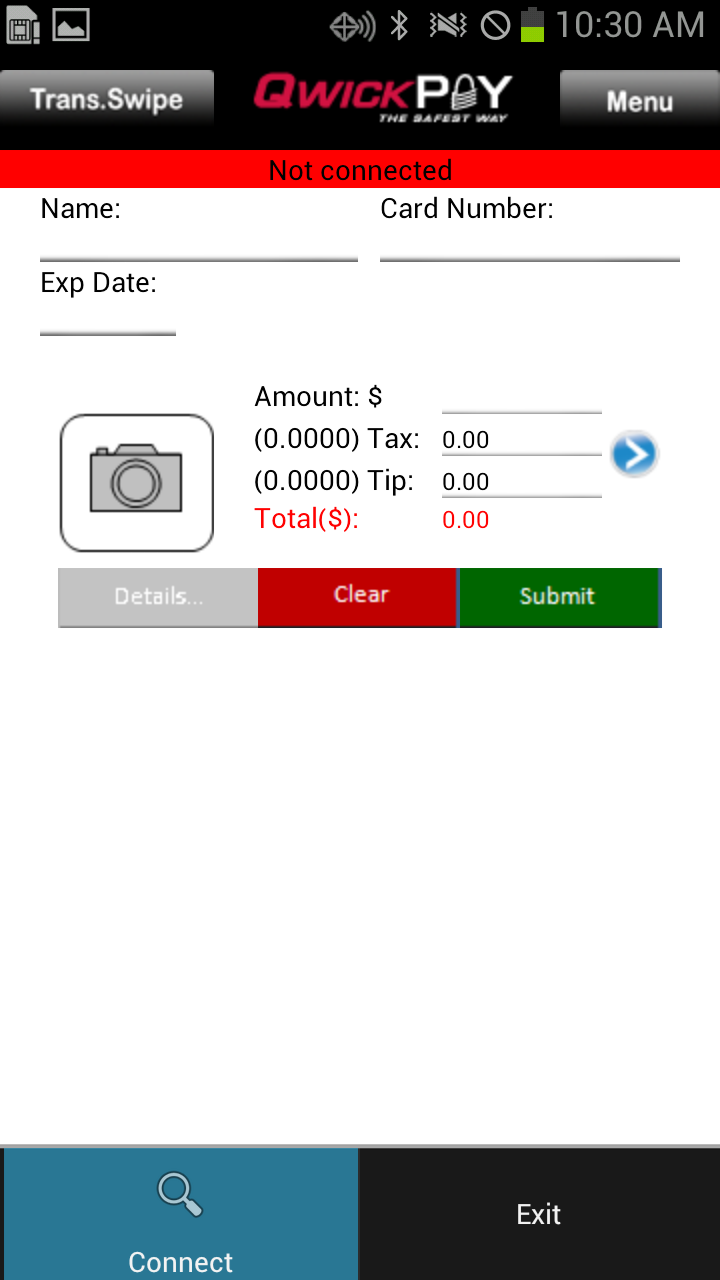
9. The red bar at the top of the main transaction screen indicates that the BulleT SCRA is not connected. Press the Menu button on your Android device (NOT the menu button within the app) and tap "Connect".
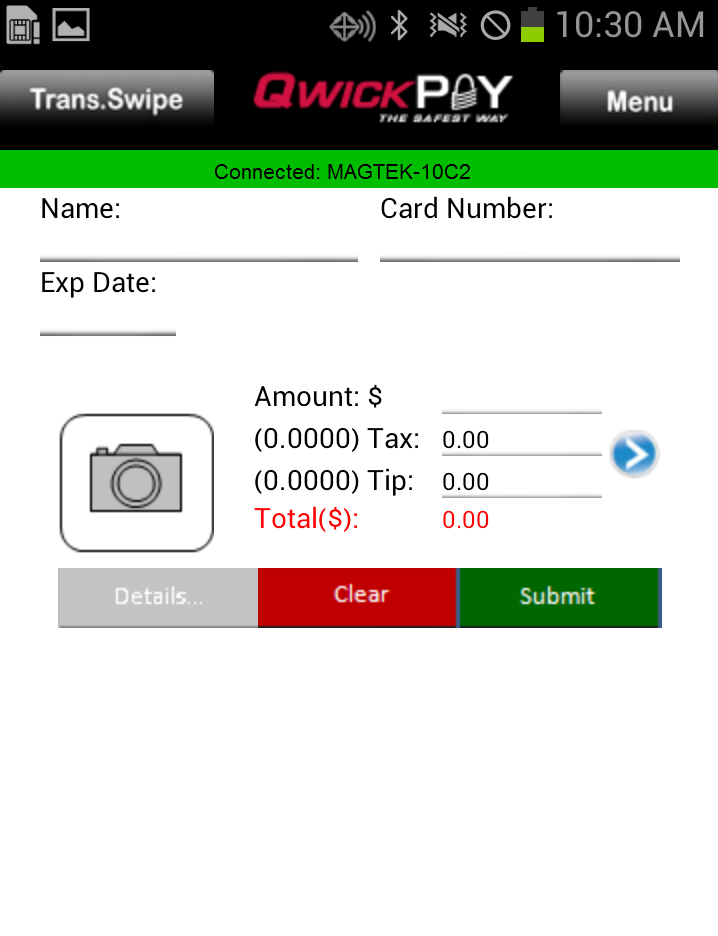
10. You can verify that the BulleT SCRA is now connected and ready to use when the bar at the top of the transaction screen changes to green and displays "Connected: MAGTEK-XXXX".
Need more help? Check out the FAQs.